Ever since I moved to a notebook as my main work computer I've become increasingly annoyed with the process of actually moving my notebook-as-a-desktop around. At my desk I've got DisplayPort, Ethernet, two USB, FireWire 800, speakers and power all plugged into a 15-inch MacBook Pro. What makes it frustrating isn't the first-world-problem of having to unplug seven cables, rather that it doesn't need to be seven cables - Apple could make the whole thing happen with just two.
Every Mac released in 2011 has at least one Thunderbolt port (the iMac has two), and Thunderbolt can deliver exactly what I'm looking for. Thunderbolt can carry two things: PCI Express and DisplayPort, the former for data and the latter obviously for video. Why would you want to carry PCIe and DP over a single cable? To address problems like the one above.
 Pretty much all device expansion on modern day PCs happens via PCI Express. Several years ago it was hard to find PCIe sound cards or Ethernet controllers, but these days vanilla PCI slots are nearing extinction and PCIe is the de facto standard. Ethernet, USB and FireWire controllers all exist as single-lane PCIe devices. Put a bunch of them at the other end of a Thunderbolt cable and you no longer need to plug in a bunch of individual cables into your notebook when at your desk. Send DisplayPort over the same cable and you can actually move all of those ports onto your monitor, thereby using a single cable to carry everything but power to your display. And this is exactly what Apple has done with its new Thunderbolt Display. By mating its 27-inch LED Cinema Display with a bunch of integrated IO controllers, Apple is hoping to deliver a display that's more of a mobile docking station than just a passive way to display video.
 Apple has tried this in the past. The old Cinema Displays used to feature an Apple Display Connector (ADC) that actually carried DVI, USB and power from a desktop Mac to the monitor. You only needed to plug in a single cable to your display, significantly reducing desktop clutter. Although Thunderbolt does carry power, it's limited to 10W - not enough to power any reasonably sized display. Where Thunderbolt does win out over ADC however is in its universal appeal. Intel created the standard. Although it's used almost exclusively on Apple systems today, come 2012 Intel is expecting PC OEMs to embrace the interface with its Cactus Ridge line of Thunderbolt controllers.

The similarities don't end with the internal panel, the chassis is very similar to its older sibling and the Thunderbolt Display retails for the same $999 price.
The display sits on an aluminum swivel base that allows for -5 degrees to 25 degrees of tilt along the horizontal axis. There's no height adjustment for the display either, only tilt. Personally, I use a height adjustable desk as I find it helps me avoid any carpal tunnel pain. Combined with a height adjustable chair, the lack of height adjustment on the display doesn't bother me. If you have a fixed height desk however, this may be a problem.
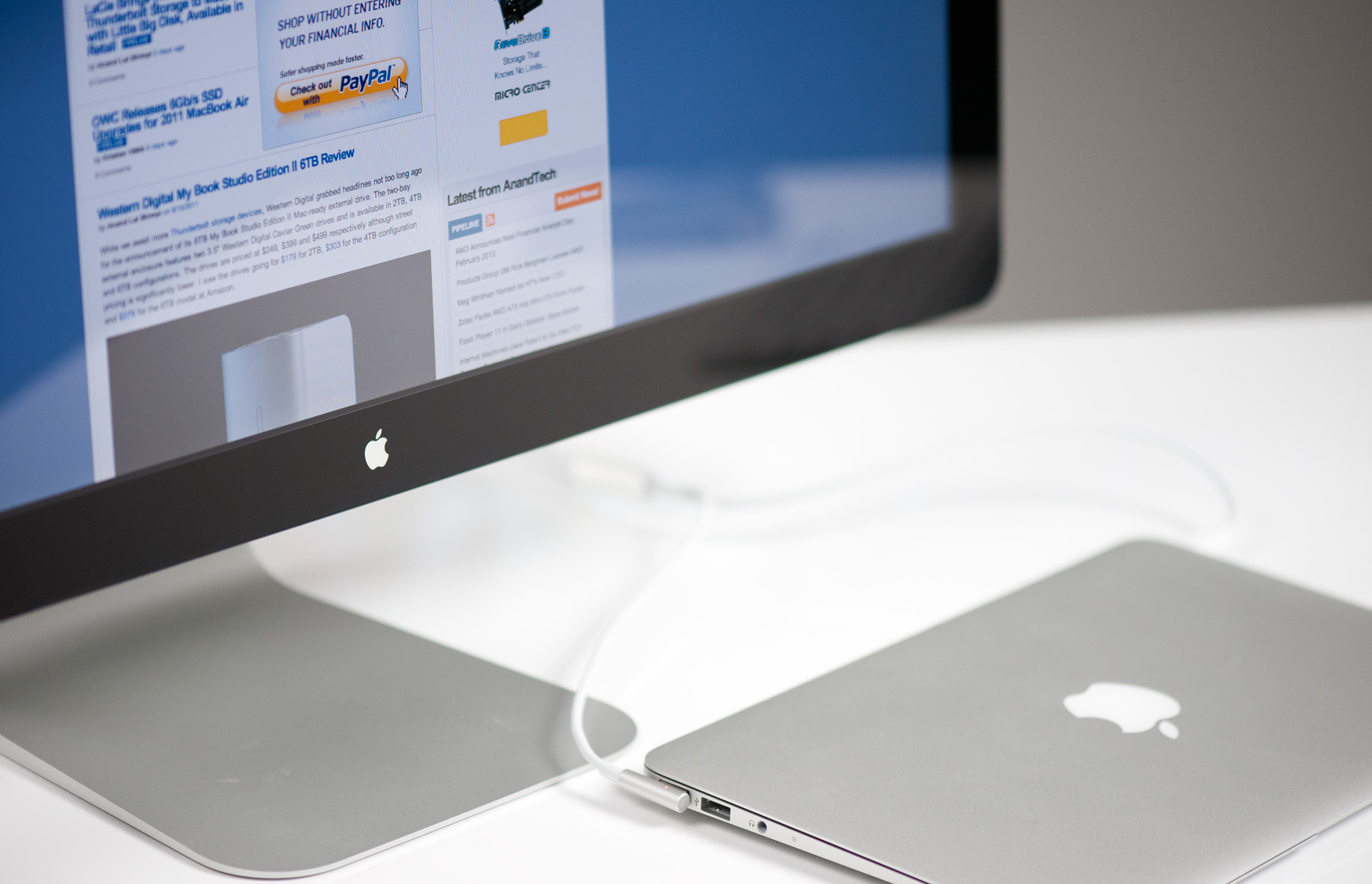
Aesthetically the Thunderbolt Display continues Apple's aluminum meets glass design language. The front of the display is all glass, while the edges and back are all aluminum. Along the top surface of the display is a mic for the integrated FaceTime HD camera. The outgoing 27-inch LED Cinema Display (still available for purchase online) sported a 640 x 480 camera, while the Thunderbolt Display ups capture resolution to 1280 x 720.
There's an ambient light sensor hidden in the top bezel of the display, but as always you can disable its functionality from within OS X.
 There are two integrated speakers in the display, again unchanged from the previous LED Cinema Display.
Two cables attach directly to the display: a removable power cable and an integrated IO cable. Cable management is done through a round cutout in the aluminum stand. The IO cable is where things really change with the Thunderbolt Display. Instead of a breakout of three cables as was the case with the Cinema Display, there are now only two: MagSafe and Thunderbolt.
 The MagSafe connector remains unchanged. If you've got any Mac that can be charged by an 85W MagSafe adapter, the Thunderbolt Display will charge said Mac. This feature alone is particularly awesome for notebook-as-a-desktop users since it allows you to just keep your actual AC adapter tucked away in your travel bag. For me I keep my MagSafe adapter in my bag and never take it out so I never have to worry about forgetting to pack it. Given how expensive MagSafe adapters are ($79 for an 85W), this is a nice feature for MacBook Air/Pro owners.
The Thunderbolt cable is obviously what gives this new display its name. Inside the Thunderbolt Display is an Intel Light Ridge Thunderbolt controller. The type of controller is important as it bestows upon the display some clear limitations. The biggest of course is the lack of support for all non-Thunderbolt systems. That's right, the only way to get video to the Thunderbolt Display is by using a Thunderbolt enabled Mac (or theoretically a Thunderbolt enabled PC). For Mac users that means only 2011 MacBook Pro, Air, iMac or Mac mini models will work with the Thunderbolt Display. Everyone else has to either buy a new Mac or stick with older displays.
 I believe the limitation here is actually on the cable side. A Thunderbolt cable can only transmit a Thunderbolt signal. Although DisplayPort is muxed in, if the display on the other end is expecting Thunderbolt and it receives DisplayPort it won't know what to do with it. It's possible Apple could have built in logic to autosense and switch between Thunderbolt and DisplayPort as inputs, but Apple traditionally employs clean breaks rather than long technology transitions. If Apple wants to ensure Thunderbolt gets adopted (at least by its users), this is the way to do it. As we learned from other legacy interfaces (e.g. PS/2, IDE), if you enable backwards compatibility you'll ensure the survival of systems that implement those interfaces. It's not so great for existing customers unfortunately.
Every Mac released in 2011 has at least one Thunderbolt port (the iMac has two), and Thunderbolt can deliver exactly what I'm looking for. Thunderbolt can carry two things: PCI Express and DisplayPort, the former for data and the latter obviously for video. Why would you want to carry PCIe and DP over a single cable? To address problems like the one above.
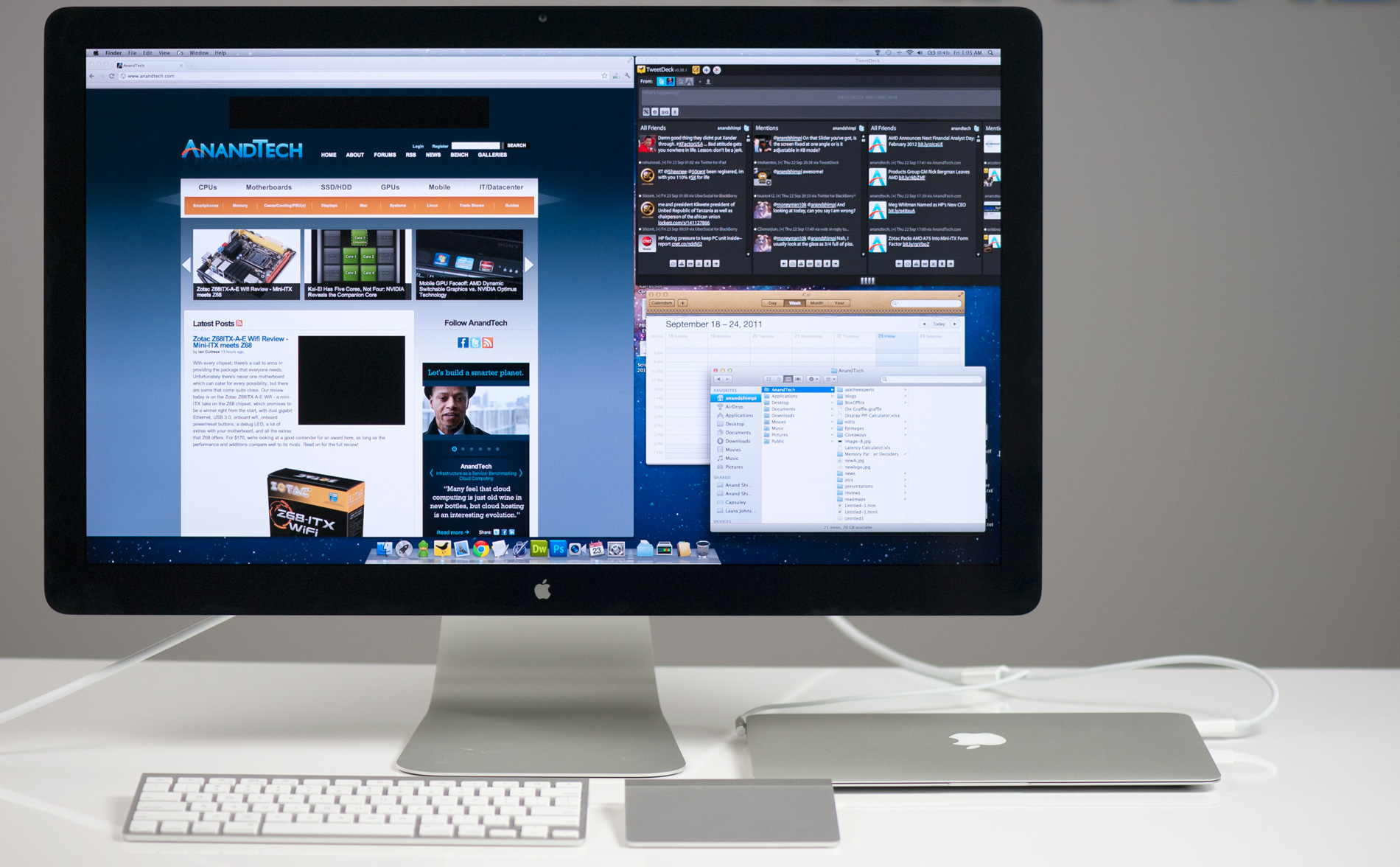
Apple's Thunderbolt Display
The Thunderbolt Display uses a near, if not perfectly, identical panel to what was in last year's 27-inch LED Cinema Display. You get a 27-inch, 16:9, 2560 x 1440 LED backlit display capable of at least 350 nits at full brightness. Apple seems to conservatively spec its desktop displays as we were able to measure 425 nits at max brightness. The uber brightness comes in handy because the display does have a glossy finish. Indoors it's not really a problem unless you're watching a dark movie scene with the display lit by a sun-facing window. Even then, cranking up the brightness all the way is usually enough to overcome any significant glare. As with all glossy displays, if you have light control (e.g. curtains or blinds) you'll be just fine.The similarities don't end with the internal panel, the chassis is very similar to its older sibling and the Thunderbolt Display retails for the same $999 price.
 |  |
Aesthetically the Thunderbolt Display continues Apple's aluminum meets glass design language. The front of the display is all glass, while the edges and back are all aluminum. Along the top surface of the display is a mic for the integrated FaceTime HD camera. The outgoing 27-inch LED Cinema Display (still available for purchase online) sported a 640 x 480 camera, while the Thunderbolt Display ups capture resolution to 1280 x 720.
There's an ambient light sensor hidden in the top bezel of the display, but as always you can disable its functionality from within OS X.
Two cables attach directly to the display: a removable power cable and an integrated IO cable. Cable management is done through a round cutout in the aluminum stand. The IO cable is where things really change with the Thunderbolt Display. Instead of a breakout of three cables as was the case with the Cinema Display, there are now only two: MagSafe and Thunderbolt.
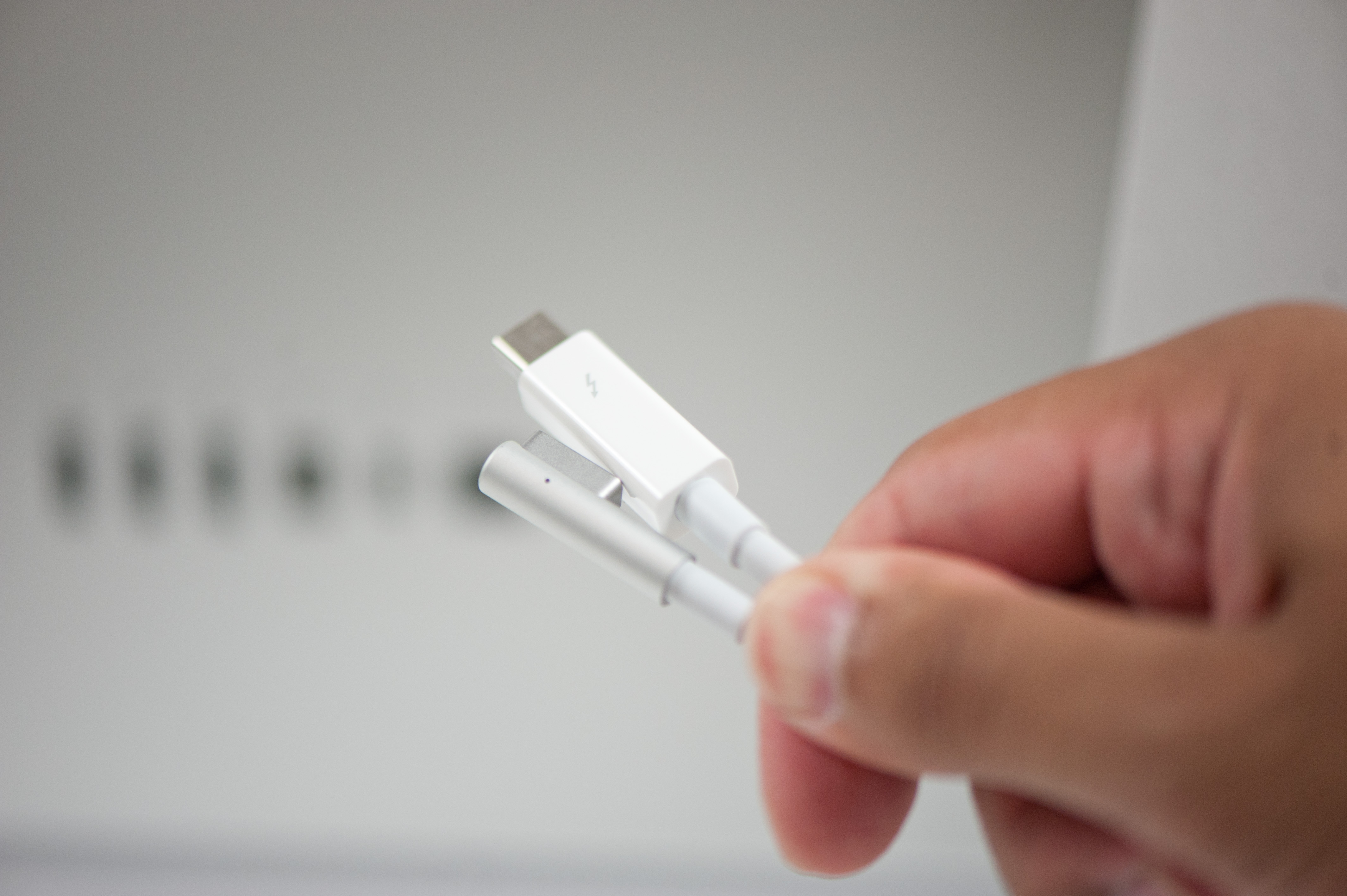
The Thunderbolt cable is obviously what gives this new display its name. Inside the Thunderbolt Display is an Intel Light Ridge Thunderbolt controller. The type of controller is important as it bestows upon the display some clear limitations. The biggest of course is the lack of support for all non-Thunderbolt systems. That's right, the only way to get video to the Thunderbolt Display is by using a Thunderbolt enabled Mac (or theoretically a Thunderbolt enabled PC). For Mac users that means only 2011 MacBook Pro, Air, iMac or Mac mini models will work with the Thunderbolt Display. Everyone else has to either buy a new Mac or stick with older displays.