Click

Showing posts with label Display. Show all posts

Thursday, September 29, 2011

The Apple Thunderbolt Display Review

Ever since I moved to a notebook as my main work computer I've become increasingly annoyed with the process of actually moving my notebook-as-a-desktop around. At my desk I've got DisplayPort, Ethernet, two USB, FireWire 800, speakers and power all plugged into a 15-inch MacBook Pro. What makes it frustrating isn't the first-world-problem of having to unplug seven cables, rather that it doesn't need to be seven cables - Apple could make the whole thing happen with just two.
Every Mac released in 2011 has at least one Thunderbolt port (the iMac has two), and Thunderbolt can deliver exactly what I'm looking for. Thunderbolt can carry two things: PCI Express and DisplayPort, the former for data and the latter obviously for video. Why would you want to carry PCIe and DP over a single cable? To address problems like the one above.
Pretty much all device expansion on modern day PCs happens via PCI Express. Several years ago it was hard to find PCIe sound cards or Ethernet controllers, but these days vanilla PCI slots are nearing extinction and PCIe is the de facto standard. Ethernet, USB and FireWire controllers all exist as single-lane PCIe devices. Put a bunch of them at the other end of a Thunderbolt cable and you no longer need to plug in a bunch of individual cables into your notebook when at your desk. Send DisplayPort over the same cable and you can actually move all of those ports onto your monitor, thereby using a single cable to carry everything but power to your display. And this is exactly what Apple has done with its new Thunderbolt Display. By mating its 27-inch LED Cinema Display with a bunch of integrated IO controllers, Apple is hoping to deliver a display that's more of a mobile docking station than just a passive way to display video.
Apple has tried this in the past. The old Cinema Displays used to feature an Apple Display Connector (ADC) that actually carried DVI, USB and power from a desktop Mac to the monitor. You only needed to plug in a single cable to your display, significantly reducing desktop clutter. Although Thunderbolt does carry power, it's limited to 10W - not enough to power any reasonably sized display. Where Thunderbolt does win out over ADC however is in its universal appeal. Intel created the standard. Although it's used almost exclusively on Apple systems today, come 2012 Intel is expecting PC OEMs to embrace the interface with its Cactus Ridge line of Thunderbolt controllers.

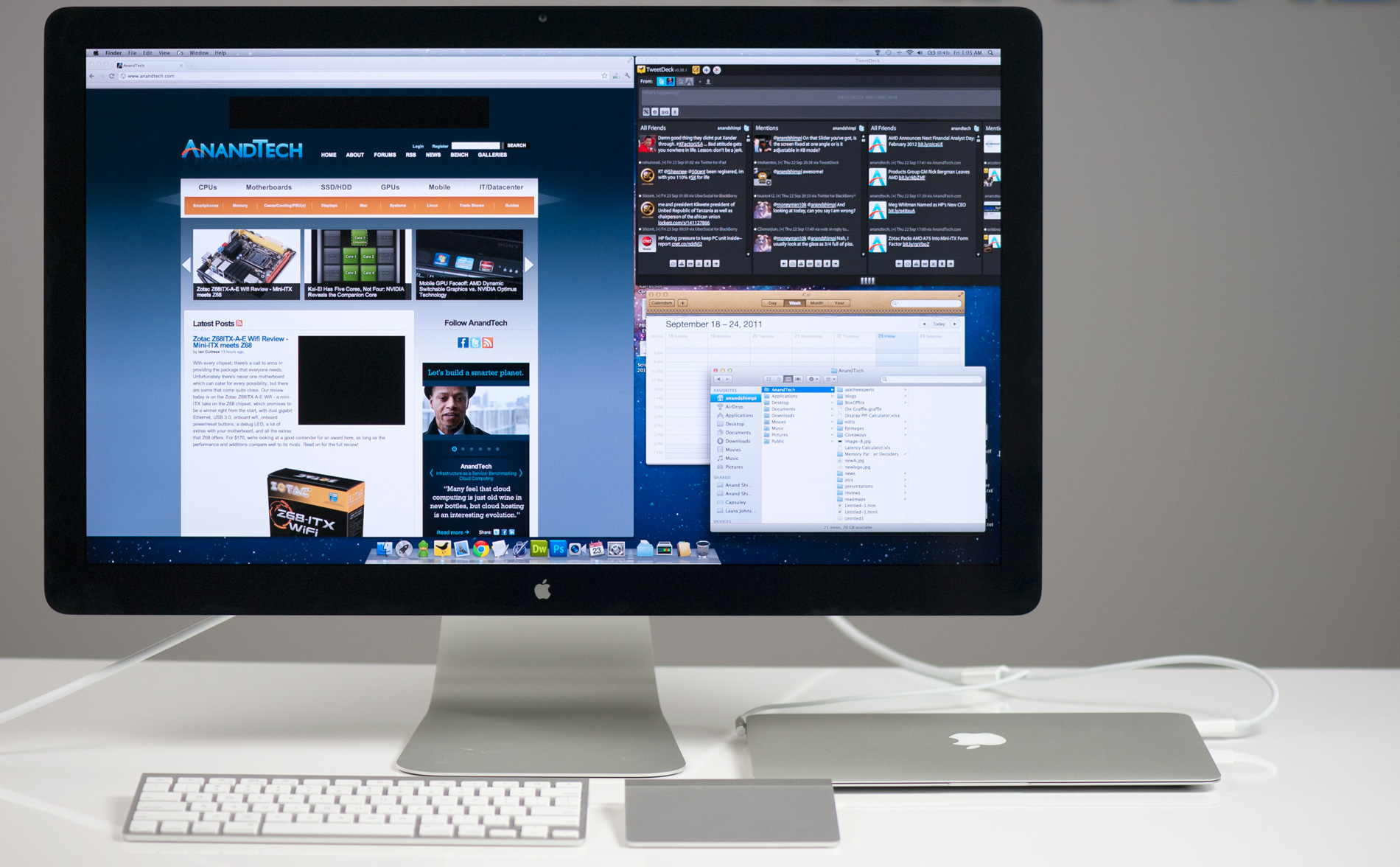
Apple's Thunderbolt Display

The Thunderbolt Display uses a near, if not perfectly, identical panel to what was in last year's 27-inch LED Cinema Display. You get a 27-inch, 16:9, 2560 x 1440 LED backlit display capable of at least 350 nits at full brightness. Apple seems to conservatively spec its desktop displays as we were able to measure 425 nits at max brightness. The uber brightness comes in handy because the display does have a glossy finish. Indoors it's not really a problem unless you're watching a dark movie scene with the display lit by a sun-facing window. Even then, cranking up the brightness all the way is usually enough to overcome any significant glare. As with all glossy displays, if you have light control (e.g. curtains or blinds) you'll be just fine.
The similarities don't end with the internal panel, the chassis is very similar to its older sibling and the Thunderbolt Display retails for the same $999 price.
The display sits on an aluminum swivel base that allows for -5 degrees to 25 degrees of tilt along the horizontal axis. There's no height adjustment for the display either, only tilt. Personally, I use a height adjustable desk as I find it helps me avoid any carpal tunnel pain. Combined with a height adjustable chair, the lack of height adjustment on the display doesn't bother me. If you have a fixed height desk however, this may be a problem.
Aesthetically the Thunderbolt Display continues Apple's aluminum meets glass design language. The front of the display is all glass, while the edges and back are all aluminum. Along the top surface of the display is a mic for the integrated FaceTime HD camera. The outgoing 27-inch LED Cinema Display (still available for purchase online) sported a 640 x 480 camera, while the Thunderbolt Display ups capture resolution to 1280 x 720.
There's an ambient light sensor hidden in the top bezel of the display, but as always you can disable its functionality from within OS X.
There are two integrated speakers in the display, again unchanged from the previous LED Cinema Display.
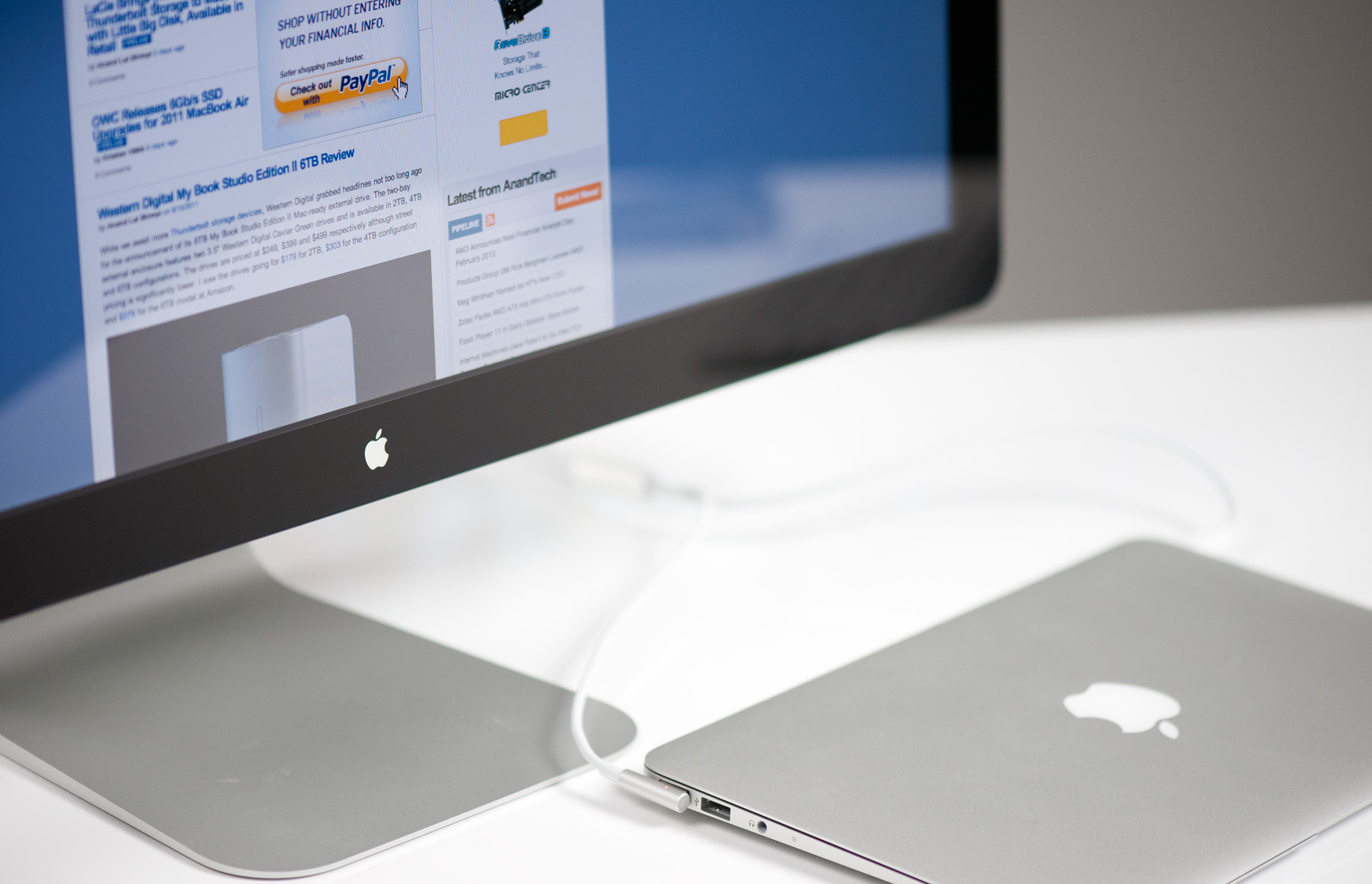
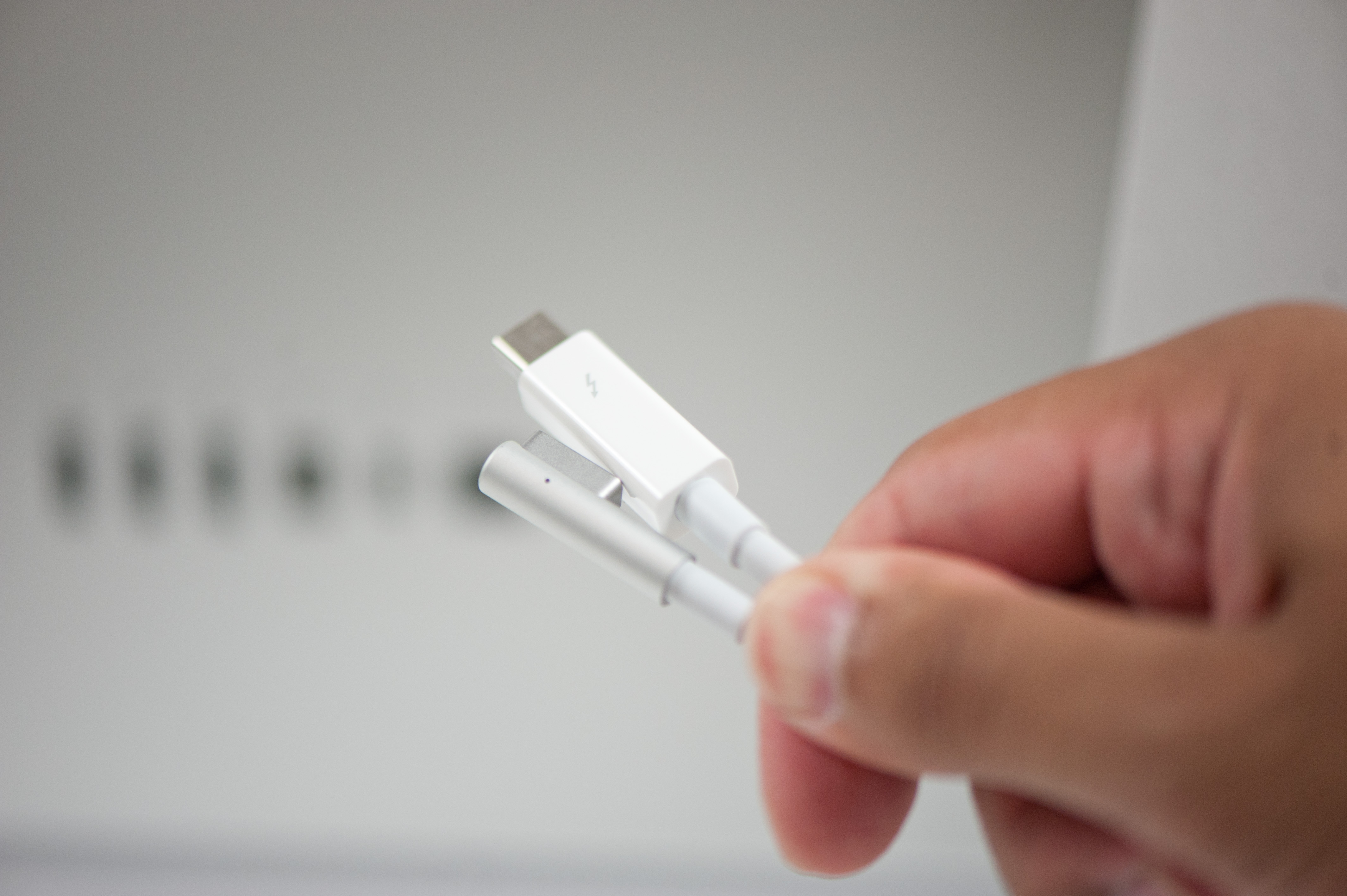
Two cables attach directly to the display: a removable power cable and an integrated IO cable. Cable management is done through a round cutout in the aluminum stand. The IO cable is where things really change with the Thunderbolt Display. Instead of a breakout of three cables as was the case with the Cinema Display, there are now only two: MagSafe and Thunderbolt.
The MagSafe connector remains unchanged. If you've got any Mac that can be charged by an 85W MagSafe adapter, the Thunderbolt Display will charge said Mac. This feature alone is particularly awesome for notebook-as-a-desktop users since it allows you to just keep your actual AC adapter tucked away in your travel bag. For me I keep my MagSafe adapter in my bag and never take it out so I never have to worry about forgetting to pack it. Given how expensive MagSafe adapters are ($79 for an 85W), this is a nice feature for MacBook Air/Pro owners.
The Thunderbolt cable is obviously what gives this new display its name. Inside the Thunderbolt Display is an Intel Light Ridge Thunderbolt controller. The type of controller is important as it bestows upon the display some clear limitations. The biggest of course is the lack of support for all non-Thunderbolt systems. That's right, the only way to get video to the Thunderbolt Display is by using a Thunderbolt enabled Mac (or theoretically a Thunderbolt enabled PC). For Mac users that means only 2011 MacBook Pro, Air, iMac or Mac mini models will work with the Thunderbolt Display. Everyone else has to either buy a new Mac or stick with older displays.
I believe the limitation here is actually on the cable side. A Thunderbolt cable can only transmit a Thunderbolt signal. Although DisplayPort is muxed in, if the display on the other end is expecting Thunderbolt and it receives DisplayPort it won't know what to do with it. It's possible Apple could have built in logic to autosense and switch between Thunderbolt and DisplayPort as inputs, but Apple traditionally employs clean breaks rather than long technology transitions. If Apple wants to ensure Thunderbolt gets adopted (at least by its users), this is the way to do it. As we learned from other legacy interfaces (e.g. PS/2, IDE), if you enable backwards compatibility you'll ensure the survival of systems that implement those interfaces. It's not so great for existing customers unfortunately.

Dell U2311H: E-IPS, Full Adjustments, and DisplayPort

For years now Dell has been one of the few companies that consistently offers a range of displays using IPS panels for desktop displays instead of only the more affordable TN panels. Now with the availability of e-IPS panels, Dell has been able to offer even more models and lower the price all the way down to $319 for a 23” 1080p display.

Gallery: Dell U2311H Appearance
The U2311H uses a very similar base to what Dell has been using for years that lets the monitor simply clip in, and allows for rotation to be used as a portrait display as well. The left side of the display has a pair of USB 2.0 ports, to go with the pair located on the bottom of the display. Also on the bottom of the display are DisplayPort, DVI, and VGA inputs, as well as the power input. Located on the front of the display on the right side are the menu control buttons that are unlabeled and nicely disappear into the bezel. The U2311H can adjust in height vertically and has both tilt and swivel adjustments as well, which should make it able to fit into most spaces. It might not be flashy but it gets the job done.
With all the above features, you’ll note that a few items are missing. There’s no HDMI port, making this less desirable as an all-in-one display for use with PCs as well as game consoles. There are also no speakers, though given the quality of most LCD speakers we don’t feel like we’re really missing out. In a similar vein, there’s no audio out, so if you were to use DisplayPort for carrying audio there’s no way to get the audio from the display to an external source. There are perhaps minor omissions, but most of Dell’s higher-end LCDs include such features and they’re worth pointing out. Here’s the full rundown of the LCD specs:
Dell U2311H Features and Specifications
Video Inputs 1 x DVI-D w/HDCP
1 x DisplayPort 1.1a
1 x VGA
Panel Type e-IPS 6-bit + AFRC
Pixel Pitch 0.265 mm
Colors 16.7 Million
Brightness 300 nits (typical)
Contrast Ratio 1,000:1 (typical)
Response Time 8 ms (GTG)
Viewable Size 23" (58.4 cm)
Resolution 1920x1080 at 60Hz
Viewing Angle 178 degrees horizontal and vertical
Backlight 4-CCFL edge-light system
Power Consumption (operation) 33W (typical)
Power Consumption (standby) Less than 1W
Screen Treatment Antiglare with hard-coating 3H
Height-Adjustable 3.94" Height Adjustment
Tilt Yes, range not specified
Pivot Yes: Landscape and Portrait
Swivel Yes, range not specified
VESA Wall Mounting 100 mm x 100 mm
Dimensions w/ Base (WxHxD) 21.57” x 14.02” x 7.25”
(548 x 356 x 184 mm)
Weight 14.22 lbs with stand (6.46 kg)
Additional Features USB 2.0 Hi-Speed Hub
(1 USB upstream port and 4 USB downstream ports)
Limited Warranty 3 years
Accessories Power Cable, DVI Cable, USB Cable, VGA Cable
Price $319.00 MSRP
Online Starting at $285 (Plus S/H)

Tuesday, September 15, 2009

CES 2007 Part I: Convergence Happened and the Most Impressive Demo of CES

For years companies like Intel and Microsoft have been talking of this impending convergence of PC and Consumer Electronics (CE) devices. In the past couple of years we have finally seen this convergence come to fruition, through a slew of devices that basically let you move or display content stored on your PC, on CE appliances. While most manufacturers have tried, very few have “gotten it right” when it comes to convergence devices. The end goal is simple: access to everything, everywhere on any device. Making it happen however is far more difficult, as creating the devices that will facilitate this goal is like one giant game of process of elimination.

Most of this year’s CES has been about poor attempts at convergence, with a handful of things that were worth while. Despite very high expected attendance, the show wasn’t nearly as crowded as last year. It still ends up taking 30 - 40 minutes to get a cab during the day, but we had no problems navigating the show floor and surrounding hotels. Whereas in previous years we’d waste a significant amount of time wading through hordes of people, there’s actually breathing room this year.

Whether it’s that the show is simply far more spread out this year, among two convention centers and many hotel suites, or attendance is simply down due to a lack of interest, we were here in full force in search of something interesting. This year’s CES marked the end of an era of talking about convergence, and the beginning of the introduction of many convergence products. While we’ve yet to see anyone with the vision to bring us the convergence world’s iPod (although Apple’s iPhone announced at Macworld looks like it may redefine another sector), that didn’t stop us from finding individual technologies that were worth a look.

As with most trade shows, the vast majority of what we saw on the floor was poorly designed and/or executed. What follows are some of our answers to the question we always get: “what was the most exciting thing you saw at the show?”

Thursday, September 3, 2009

HP w2408: A "New" Twist on 24" LCDs

Introduction

Try as we might, it's often difficult to get all of the products that we would like to review sent our way. Case in point: LCDs. There are dozens of good quality LCDs available that we have not reviewed -- and plenty more low quality LCDs. It's not too surprising that some companies don't want to send us review samples. If you have a low quality product that can't compete anywhere but price, in-depth reviews might do more harm than good in terms of sales. This is not to say that the HP w2408 is a low quality product, but it does stand out from previously reviewed 24" LCDs in several areas.

Looking at the display market from the buyers perspective, there are several different types of users. On the one hand, you have people that simply want a display that will show them the usual computer stuff. It won't really matter whether a display is slightly brighter, offers better contrast, has extra inputs, or anything else; if it works with their computer and doesn't break, they will be content. For such people, looking at the least expensive LCDs in a particular size range makes a lot of sense. Somewhat similar to this group are those who don't care about the technical aspects of a display so much as the outward appearance. If a product fits in better with their office environment and decor, that may be reason enough to purchase it. Then there are the gaming enthusiasts that want better response times and higher refresh rates, home theater enthusiasts who want a better movie viewing experience, and imaging professionals that require the most accurate colors possible.

There's often overlap between the target markets, but it's rare to find a display that can meet the requirements for all areas. Displays with the best color accuracy are often much more expensive, as are those that target home theater enthusiasts. A display targeting gamers on the other hand may sacrifice color accuracy in order to improve response time -- many users will actually prefer displays that have less accurate colors.

So where does the HP w2408 fit in the above list? With a price of $570, it's less expensive than many competing models, but at the same time it's hardly inexpensive. One of the reasons we like many of the 24" LCDs on the market is that they offer a great selection of features, and many have higher quality LCD panel technology than what's available in 22" LCDs. The w2408 appears to be a step backward in this respect, as feature wise it's simply an inflated HP w2207. Where Dell, Gateway, Samsung, and others use (or at least used) S-PVA panels, the w2408 is one of a growing number of 24" LCDs that uses a TN (S-TN) panel - it might be the best-looking TN panel to enter our test lab to date, but it's still a TN panel.

24" LCDs with TN panels definitely have a place in the market, but many of these models cost $400 or less where higher-quality S-PVA panels start around $600. That puts the HP w2408 in a difficult position, and the primary selling point appears to be an industrial design that sets it apart from other offerings. Is that enough, or are there other selling points for the w2408? Let's take a closer look and see exactly what it things to the table.

HP L2335: Low Response Time and High Resolution LCD

IntroductionHP L2335: Low Response Time and High Resolution LCD

It was only 18 months ago when we took a look at Samsung's SyncMaster 213T and declared it the best $1,000 LCD that we had seen. The (relatively) high resolution of 1600x1200, the bright backlight and sleek look put the 213T in the "Ultra-Enthusiast" pool with very few competitors. Ultra-High End has a whole new meaning now, and with reason. Since the Samsung 213T, we have seen high end displays shift toward wide screen, and support for higher resolutions and smaller pixel pitches (0.258mm versus 0.27mm). The entire industry owes Dell a slight pat on the back for their part in really pushing the price barrier.

We were a little surprised when Dell unveiled their next generation lineup last year, since it did not include a 23" display based on a SIPS panel. Instead, two of Dell's four displays went to Samsung (the UltraSharp 1905FP and the 2405FPW) and the mainstream model went to LG.Philips (the UltraSharp 2005FPW). Although the UltraSharp 1905FP and 2005FPW turned out to be phenomenal monitors and the 2405FPW is the cheapest LCD larger than 21", did Dell make the right move by ditching LG.Philips for the highest model? Apple and HP certainly think that LG.Philips LCD has the right formula with their Super IPS displays, and in past display reviews, 8-bit SIPS displays have done very well in our comparisons.

Today, we are taking a look at a display that has been available for a little while, but it's only been a few weeks since it broke the magic $1,000 barrier. The HP L2335 is actually a business display - but it just so happens to support component, composite, S-Video, signal zoom and a 16ms gray-to-gray response time. While I love working in Excel on a 23" LCD as much as the next guy, playing World of Warcraft at 1920x1200 on a low response time display doesn't get any better. Obviously, the market has changed quite a bit in 18 months. What was once top of the line barely gets recognition here on AnandTech, and the monitors that do end up on top are truly modern marvels. Does HP have the opportunity to pick up where Dell left off and capitalize on the success of previous LG.Philips panels? That's exactly what we are set to find out!


Desperately Seeking Quality LCDs


We looked at a couple of BenQ LCDs last year and were generally pleased with their features, pricing, and performance. The E2200HD and E2400HD were among the first 21.5" and 24" 1080p computer LCDs to hit the market, and since that time we have seen a veritable deluge of similar displays. Pricing has dropped even further, and if you're not super concerned with image quality you can basically grab any of the current crop of 21.5" to 24" LCDs and walk away pleased with your purchase. The short summary of what you get is:

  • A reasonably large LCD
  • Pricing of under $200 for 22" or under $300 for 24" (and less during sales)
  • Limited extras - usually no height adjustment, portrait mode, or other extras beyond USB ports
  • Good processing speed - little to no image lag relative to other LCDs
  • Decent (average) color accuracy
  • Mediocre color gamut
  • Poor vertical viewing angles

The last four items in that list can be summarized with one simple statement: these inexpensive LCDs all use TN panels. There tend to be two types of display users, those that care a lot about image quality and those that really have no idea what image quality means. The latter are not necessarily wrong or uninformed; they just don't care enough about such things to worry about low-level details and they will usually be happy with any current LCD purchase. These are the type of users that give 5-star reviews to pretty much every LCD on Newegg, as an example. I say good for them and enjoy your inexpensive LCD. In truth, I use TN panels on a regular basis (pretty much every laptop out there uses a TN panel), and while I might notice the difference initially it will fade from conscious thought after a few minutes.

For those that want something better, the choices are far more limited… and far more expensive. Upgrade from a TN panel to a similarly sized PVA or IPS panel and you can usually count on spending 50% to 100% more - or more! - on the purchase. That might be perfectly acceptable if the PVA/IPS panels were all universally better, but that's not always the case. Color accuracy is almost random it seems, with some IPS panels scoring exceptionally well, PVA panels running the gamut from great to average, and TN panels that likewise fall anywhere from excellent to mediocre. Viewing angles always favor IPS and PVA panels over TN panels, especially in terms of vertical viewing angles. Color gamut is tied to the backlight used in the panel, so you can have poor or great color gamut with any panel technology. Last but not least is image processing speed, and here's where things get interesting


To date, the fastest panels in terms of image processing speed (frequently referred to as "input lag") are all IPS or TN panels. These displays are essentially equal and very few people would notice any lag. PVA panels are a different story, unfortunately, with lag ranging from 20 to 50 ms in testing. That means if you purchase a PVA display, you should plan on your display running 1 to 3 frames behind your current input. Most people associate this lag with gaming, and it can certainly affect your performance in fast-paced, competitive games. If what you see is actually three frames behind the current action - and add in networking lag and other types of lag and it could be delayed five or more frames! - you could end up with a competitive handicap. However, it's not just a problem with gaming. Even in general computer use, a laggy display can make it seem like your mouse is sluggish. Personally, PVA panels with 40+ ms of processing lag feel like the early wireless mice, where there was a small but perceptible delay between moving the mouse and seeing the result on screen. Doing precise image editing, as another example, is an area where faster display processing times are desirable.

The vast majority of LCDs these days are TN panels, and the trend appears to be moving even more in that direction. With a soft economy, many are looking for any way to save money, and even those who really like quality displays may be willing to settle for a less expensive TN panel. S-PVA panels all come from Samsung (they hold the patent on the technology), while IPS displays come from a couple manufacturers. Similar to PVA is a lesser-seen panel type called MVA (A-MVA), and these panels also come from one source: AU Optronics. Some users prefer PVA/MVA images over IPS, for whatever reason, so while my personal preference tends to IPS I was excited to finally have an opportunity to look at an A-MVA panel.

BenQ is one of the retail arms of AU Optronics; they shipped me their FP241VW several months back, and I began testing. Before I could finish with the review, unfortunately, I was informed that the model was being discontinued. However, while that makes the review of the FP241VW less meaningful, AU Optronics still has A-MVA panels and these show up in other displays. That being the case, I felt it would be good to discuss some of the highlights of the A-MVA panels and show limited testing results for the BenQ FP241VW. Why would that even be useful? As you might have guessed there are some interesting performance characteristics to discuss.


Sunday, June 7, 2009

24" LCD Roundup

Introduction

Most people like to get as much information as possible when it's time to purchase and new, relatively expensive item. Unless you have money to throw around, you typically don't want to overpay for something that underperforms. That's where roundups of a product category can be particularly useful; unfortunately, it's not always easy to get all of the products in one place in order to put together such a roundup. What started as a review of a couple new 24" LCDs eventually grew into what you see here: a comparison of five of the most recent 24" LCDs to hit the market... that we were able to acquire. Note the qualification at the end of that sentence; there are still plenty of 24" LCDs that we have not yet reviewed, but for now we'll take what we can get. Besides, trying to put together all of the information for this article took enough time as it is.

We've discussed LCD panel technologies in the past, and we've often had negative comments for TN panels in particular. The biggest problem with TN panels is that they have far more limited viewing angles, often to the point where a minor adjustment in where you're sitting can affect what you see on the display. However, it just may be that there are benefits to TN panels as well. Look at most specifications and you will find lower response times advertised for TN panels than for competing PVA and IPS panels. Perhaps the biggest advantage for TN panels, however, is price. As the original LCD technology, TN panels have had a long time to mature and manufacturers are far more comfortable with them. Thus, it's little surprise that the prices are usually lower than what we find on S-PVA panels.

It used to be that all 24" LCDs used S-PVA panels, but that has begun to change during the past year. Cost has certainly been an important factor, but regardless we're beginning to see more and more 24" TN-based LCDs. Of the five new LCDs we're reviewing today, three use TN panels while two continue to use S-PVA panels. The latter do indeed cost more, but they also target a different market. Where the TN-based LCDs are intended for the consumer market, the S-PVA LCDs generally target the professional market.

We have a ton of information to cover in this article, so let's get to it. We're going to let the images do the talking for a lot of the areas we normally dwell on, and focus primarily on any noteworthy items that may not be immediately apparent. Also, feel free to consult our short glossary of terms that we use in our display reviews before continuing.


ASUS MK241H Specifications and Appearance

ASUS MK241H Specifications
Video Inputs DVI with HDCP support
HDMI
Analog (VGA)
Panel Type TN (ACI 24A1)
Pixel Pitch 0.270mm
Colors 16.7 million (6-bit with dithering/interpolation?)
130% color gamut
Brightness 450 cd/m2
Contrast Ratio Up to 3000:1 (Dynamic)
Response Time 2ms GTG
Viewable Size 24" diagonal
Resolution 1920x1200
Viewing Angle 170 horizontal/160 vertical
Power Consumption <130w>
Power Savings <2w
Screen Treatment Matte (non-glossy)
Height-Adjustable No
Tilt Yes - 30 degrees back/5 degrees forward
Pivot No
Swivel No
VESA Wall Mounting 100mm x 100mm
Dimensions w/ Base (WxHxD) 23" x 18" x 9.6" (WxHxD)
Weight w/ Stand 19 lbs.
Additional Features Integrated 1.3MP webcam and mic
(USB connection to PC required)
Audio 2 x 2W Speakers
Audio in, Line out
Limited Warranty 1-year parts and 3-year labor
Price Online starting at ~$530

ASUS claims an impressive 130% color gamut for the MK241H. That seems rather high, and some of you may be wondering how exactly a display can be higher than 100%. The reason is quite simple: color gamut is usually measured against the NTSC standard, which is getting a little long in the tooth. Modern technology is thus able to exceed that standard, though it requires the use of an appropriate color space in order to do so. Naturally, we'll see whether there's any truth in the 130% claim.

Most of the remaining features are typical of an entry-level 24" monitor. The MK241H includes DVI, HDMI, and VGA inputs and it has built-in speakers (that as you might expect don't sound particularly good, but they'll get the job done if all you need is basic audio). In other areas, the ASUS LCD is more spartan. It lacks height, tilt, and pivot functionality; none of these are absolutely necessary, but we appreciate them nonetheless. The MK241H also lacks any USB ports, but it makes up for this by including an integrated webcam and microphone. That last is one of the few things that sets this LCD apart from other offerings.


The MK241H uses a TN panel, and the biggest drawback to such a panel is the limited viewing angles. TN panels have improved over the years, to the point where many people are no longer bothered by the viewing angle limitation. Still, they are clearly inferior in this area to PVA and IPS panels. Looking at TN panels from below is the worst-case scenario, and in fact they are practically unusable from this angle. However, this should not be a problem for most users unless you tend to work on your computer while lying down.

Thursday, September 27, 2007

Dell 2407WFP and 3007WFP LCD Comparison

Originally founded in 1984, Dell is one of the largest computer electronics companies in the world, currently ranking a strong #2 to HP in terms of computer systems shipped. When you sell that many computers, it's not at all surprising that you also sell quite a few displays. A large portion of Dell's sales come from the business sector, and businesses were one of the first areas that really pushed for the more compact LCDs. One of the goals with any successful business is to try and reduce your costs and increase your profit margins, and one way to accomplish that is by bringing manufacturing in-house. Back in the days of CRTs, many large OEMs would simply take a proven display and brand it with their own name, but with LCDs they've taken that a step further. What started as merely one component to be sold with any new computer system has grown into a sizable market all its own, and nearly every large OEM now has a line of LCDs that they manufacture and sell with their systems.

Apple was one of the first companies to come out with very large LCDs with their Cinema Display line, catering to the multimedia enthusiasts that have often appreciated Apple's systems. Dell followed their lead when they launched the 24" 2405FPW several years ago, except that with their larger volumes they were able to offer competing displays at much more attractive prices. In short order, the 800 pound gorilla of business desktops and servers was able to occupy the same role in the LCD market. Of course, while many enthusiasts wouldn't be caught running a Dell system, the most recent Dell LCDs have been received very favorably by all types of users -- business, multimedia, and even gaming demands feel right at home on a Dell LCD. Does that mean that Dell LCDs are the best in the world? Certainly not, but given their price and ready worldwide availability, they have set the standard by which most other LCDs are judged.

In 2006, Dell launched their new 30" LCD, matching Apple's 30" Cinema Display for the largest commonly available computer LCD on the market. Dell also updated most of their other LCD sizes with the xx07 models, which brought improved specifications and features. These displays have all been available for a while now, but we haven't had a chance to provide reviews of them until now. As we renew our LCD and display coverage on AnandTech, and given the number of users that are already familiar with the Dell LCDs, we felt it was important to take a closer look at some of these Dell LCDs in order to help establish our baseline for future display reviews.

We recently looked at the gateway fpd
our first LCD review in some time, and we compared it with the original Dell 24" LCD, the 2405FPW. In response to some comments and suggestions, we have further refined our LCD reviewing process and will be revisiting aspects of both of the previously tested displays. However, our primary focus is going to be on Dell's current 24" and 30" models, the 2407WFP and 3007WFP. How well do these LCDs perform, where do they excel, and where is there room for improvement? We aim to provide answers to those questions.

Saturday, September 15, 2007

Dell 2707WFP: Looking for the Middle Ground of Large LCDs

We've taken a look at several high-end 30" LCDs recently, like the HP LP3065 and the Dell 3007WFP. While these are undoubtedly nice monitors, many people have a few concerns with them. One of the major problems is that they require a dual-link DVI connection, so they essentially require a higher end graphics card than what many people have. Hooking them up to a notebook is also generally out of the question, with a few exceptions. They are also quite large, but with their 2560x1600 native resolution they still have a very fine pixel pitch. Some will think that's a good thing, while those who are more visually challenged [Ed: raises hand] might prefer a slightly lower native resolution.Furthermore, while nearly everyone will agree that running your LCD at its native resolution is the best solution, gaming on a 30" LCD at 2560x1600 requires some serious graphics horsepower. Then there's the lack of input options on the 30" LCDs; due to a lack of any scaler ICs that can handle the native resolution, the displays only support dual-link DVI connections (or single-link with a very limiting 1280x800 resolution, with a few caveats).This is not to say that 30" LCDs are bad; merely that they are not a solution that all find ideal. Enter the 27" LCD panel.There are definitely people that would like something slightly larger than a 24" LCD, but they don't want to deal with some of the aforementioned problems with 30" LCDs. These people basically have a few options. First, they could always look at some of the 1080p HDTV solutions, which are currently available in 32", 37", 42", and several larger sizes. If resolution isn't a concern, there are plenty of other HDTV solutions out there, but those are less than ideal for computer work. The other option, and the one we'll be looking at today, is to get something like Dell's 27" 2707WFP.


We've already looked at Dell's 2407WFP and 3007WFP, so we refer back to the earlier review for anyone interested in additional information about Dell's other LCDs, warranty, and support policies. Our primary focus here is going to be on how the 2707WFP compares to both the slightly larger and slightly smaller offerings on the market.One of the factors that many people are going to be interested in is the pixel pitch of the various LCD offerings. We've compiled a list of typical pixel pitch sizes for a variety of LCD panels and resolutions. Some people feel a smaller pixel pitch is always more desirable, and while that might be true for some uses, reading text on an extremely fine pixel pitch can at times be difficult for some of us. If you've used a 15" laptop with a 1920x1200 resolution, you will hopefully understand. We know plenty of other users that find the typical 17" LCDs are not comfortable to use at the native 1280x1024 resolution, which is why many people prefer 19" LCDs. (Modifying the DPI setting of Windows can help in some areas, but there are quirks to changing the DPI from the default 96dpi setting.

As you can see from the above table, the 27" LCDs currently boast the largest pixel pitch outside of HDTV offerings. However, the difference between a 15" or 19" pixel pitch and that of the 2707WFP is really quite small. If you're one of those that feel a slightly larger pixel pitch is preferable - for whatever reason - the 2707WFP doesn't disappoint. Dell has made some other changes relative to their other current LCD offerings, however, so let's take a closer look at this latest entrant into the crowded LCD market.

Saturday, September 8, 2007

Laptop LCD Roundup: Road Warriors Deserve Better

Two of the areas where we've seen the most growth in the last few years are notebooks and flat-panel displays. The reasons for the tremendous growth differ, of course. Notebooks are a hot item because people are becoming enamored with wireless networks and portability, while LCDs have become popular because few manufacturers are making CRTs anymore and the small footprint of LCDs is desired by many people. We're working on increasing our coverage of both of these sectors, but up until now we haven't actually taken a close look at where they intersect.Since the first laptops began shipping, LCDs have been the de facto display standard. Years before most people were using LCDs on their desktop, laptops were sporting these thin, sleek, attractive displays. As anyone who used one of the earlier laptops can tell you, however, the actual quality of the LCD panels was often severely lacking. With the ramp up in production of both LCD panels and notebook computers, you might be tempted to assume that the quality of laptop displays has improved dramatically over the years. That may be true to a certain degree, but with power considerations being a primary factor in the design of most notebooks, compromises continue to be made.Without even running any objective tests, most people could pretty easily tell you that the latest and greatest desktop LCDs are far superior to any of the laptop LCDs currently available. While desktop LCDs have moved beyond TN panels to such technologies as S-IPS, S-PVA, and S-MVA we are aware of only a few laptop brands that use something other than a TN panel. (Unfortunately, we have not yet been able to get any of those laptops for review.) We have also complained about desktop LCDs that have reached the point where they are actually becoming too bright, in an apparent attempt to win the marketing war for maximum brightness. The same can't be said of laptops, as very few can even break the 200 cd/m2 mark. Individual preferences definitely play a role, but outside of photography and print work most people prefer a brightness setting of somewhere between 200 and 300 cd/m2.Luckily, there are plenty of new technologies being worked on that aim to improve the current situation. Not only should we get brighter laptop panels in the near future, but color accuracy may improve and power requirements may actually be reduced relative to current models. LED backlighting is one technology that holds a lot of promise, and it has only just begun to show up on desktop LCDs. Dynamic backlighting - were the brightness of some LEDs can be increased or decreased in zones depending on what content is currently being shown - is another technology that we may see sooner rather than later. Then there are completely new display technologies like OLED.With the current laptop landscape in mind, we have decided that it's time for us to put a bigger focus on the quality of laptop LCDs. To accomplish this we have put together a roundup of the current notebooks that we have in-house. Future laptop reviews will continue this trend by including a section covering display analysis and quality, but we wanted to build a repertoire of past notebook displays in the meantime. While we only have four laptops at present, it is also important to remember that there are only a few companies that actually manufacture LCD panels. We would also expect any companies that release notebooks with higher-quality LCDs to make a bullet point out of the fact, which means that if you don't see any particular emphasis placed on the display panel in a notebook's specifications it probably has a panel similar to one of the laptops we're looking at today.

Thursday, September 6, 2007

HP w2207: Shiny 22" Perfection?

IntroductionLet's be honest: we like big displays. Given the choice between any two computer LCDs, we would almost invariably take the larger display - provided that price isn't an overriding concern, naturally. That being the case, and looking at the current prices of LCDs, we have a serious problem even considering anything smaller than a 20" LCD. The difference in price between a 17" LCD and a 22" LCD can be as little as $75, and by the time you're looking at reasonable quality displays, the price difference can narrow even more. Widescreen displays are the trend these days, which is all the more reason to get something a bit larger if possible - note that in terms of screen surface area, a 19" widescreen is actually slightly smaller than a standard 19" 5:4 aspect ratio LCD.It wasn't all that long ago that a typical 20" LCD could cost well over $500. After watching 20-22" CRTs bottom out at around $500 for more than five years, you certainly won't find us complaining about LCD prices dropping by 30% or more per year! There is a point of diminishing returns, however, and it's quite difficult to find any size LCD for under $150. Should you go out and purchase the least expensive (and probably lowest quality) LCD you can find for $150, or is it better to spend a bit more money to get one of the larger displays? Considering that the display is what you're actually spending all of your time looking at when you use a computer, we continue to recommend that you spend more rather than less money on that particular component, and the fact that a good quality display can last through several computer upgrades is merely one more reason to do so.

We're looking at HP's 22" w2207 display today, which at $360 costs quite a bit more than the entry level 22" LCDs on the market. We previously looked at one such monitor, the Acer AL2216W that currently sells for $230, so one of the first questions we need to answer is what exactly the w2207 provides that the Acer lacks. Other than a few extra features, we also need to look at performance, but for less demanding users we feel pretty confident in stating that you'll be hard-pressed to find an extra $130 of value in the HP offering. What about those of you who aren't so easy to please - is there a case to be made for the HP w2207? Let's find out....